 Padel
Padel
Score Padel matches for up to 4 players simultaneously. Each player sees the scoreboard on their smartphone and Garmin smartwatch. MVPlayer acts as a virtual umpire, announcing the score aloud via your phone after every point. So you can focus on the game, not the score.
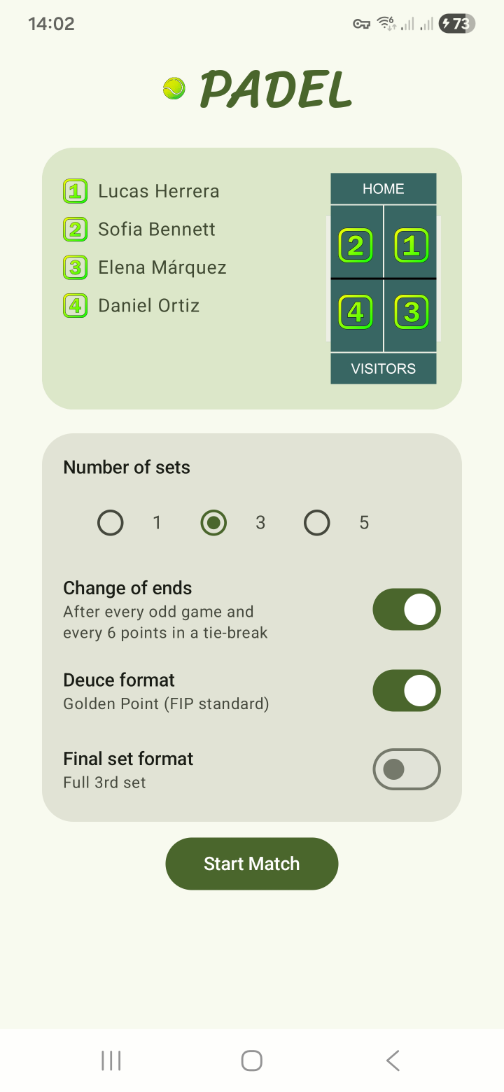
The Padel Game Lobby
Up to 4 players can join the game lobby, take their court positions, and agree on match preferences like the number of sets and deuce format. Once everyone is ready, the match can begin! You Play, We score!
Get yourself a Padel Bracket from our store. These brackets snap securely onto the Padel cage, transforming any smartphone into a high-visibility court-side scoreboard. Your Garmin watch controls the points, while the phones handle the visual display and audio announcements.
Tip: We recommend hanging the bracket above shoulder height between the 2nd and 3rd cage posts for the best view.
Alternatively, you can start the match setup on your phone, lock the screen, and stow it safely in your racket bag. In this mode, you rely solely on your Garmin smartwatch to view and control the score from your wrist.
The Scoreboard
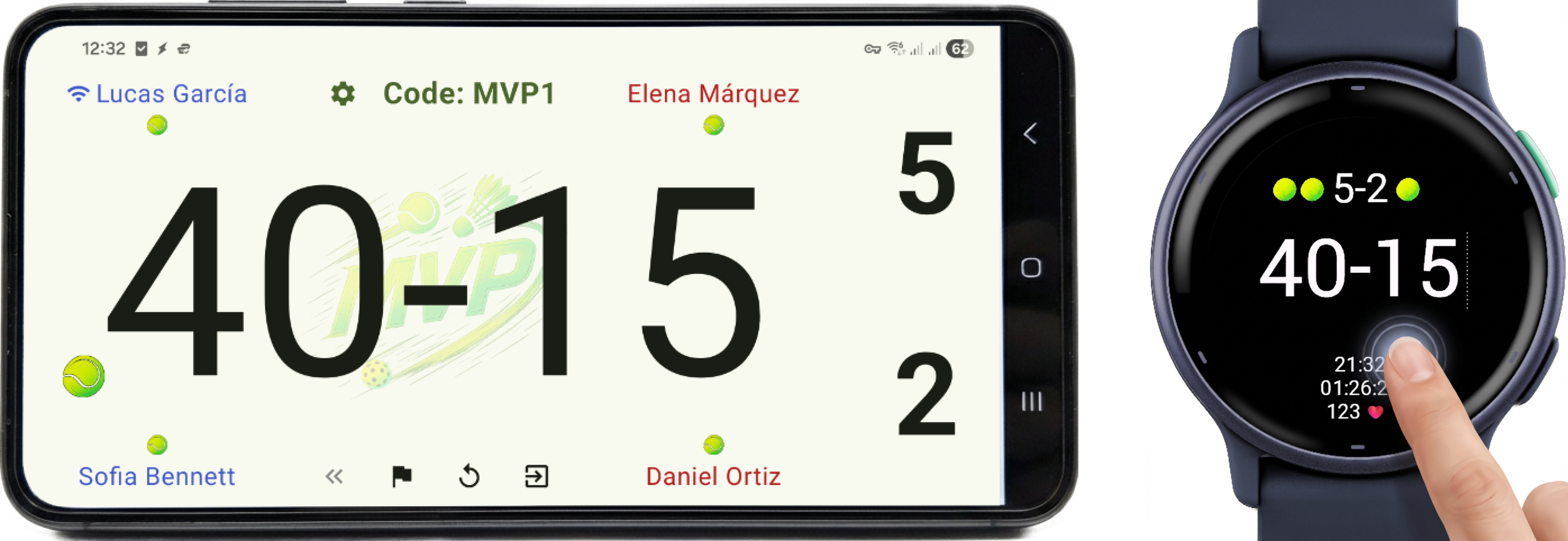
The live display shows player names, detailed match scores, and a visual serve marker indicating exactly where the next serve should be taken. Scores sync instantly across all connected devices.
Scoreboard Screen Controls
Manage the scoreboard:
 Player and match preferences. 1
 Correct to previous scores (Undo).
 Forfeit the game.
 Reset the match. 2 Press again to switch the starting serve to the other team.
 Exit the match completely and return all players to the Home screen. 2
Garmin Watch Controls
Manage the game entirely from your wrist:
- Tap Bottom Half: Add point for your team.
- Tap Top Half: Add point for opponent team.
- Tap Right Side: Correct to previous scores (Undo).
- ESC Key: Reset the match. 2 Press again to switch the starting serve to the other team.
- ENTER Key: Open the menu to Stop, Save, or Resume the Activity session.
1 Changing match settings mid-game will reset the match.
2 Match results will be saved automatically if the match has already ended.
Smartphone Only Scoreboard
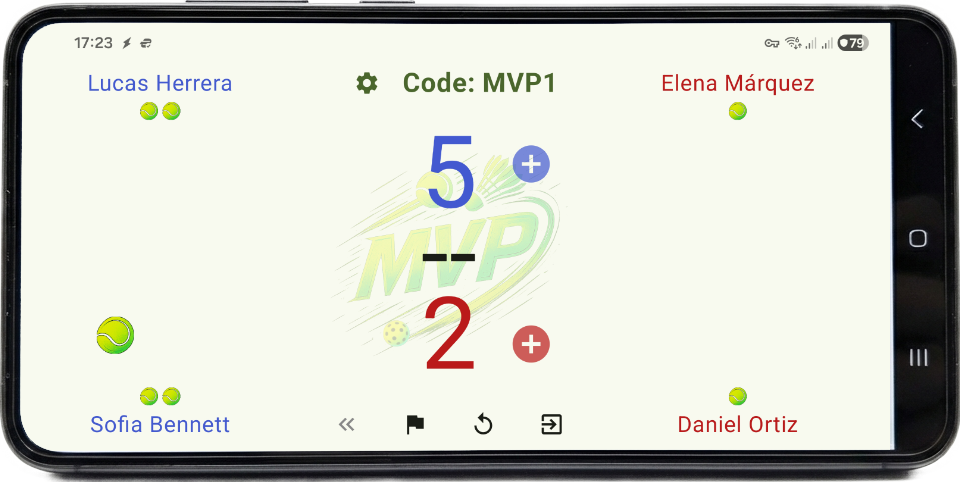
Don't have a Garmin smartwatch? No problem! You can still manage the match directly from your smartphone. The simplified scoreboard allows you to update game scores manually by tapping the plus circle icons next to the appropriate team whenever they win a game.
Have more questions? Check out the Padel FAQ.